
General settings are where you configure generic parameters for Fabric-enabled Logpoint instances.
Go to Configure >> Settings >> System >> General Settings.
2. Select the instances where you want to apply general settings. You can select multiple Logpoint instances from different pools. If you are applying general settings for multiple Logpoints, you can’t use Server Alias or Logpoint Name and Identifier. They are hidden.
Click Next.
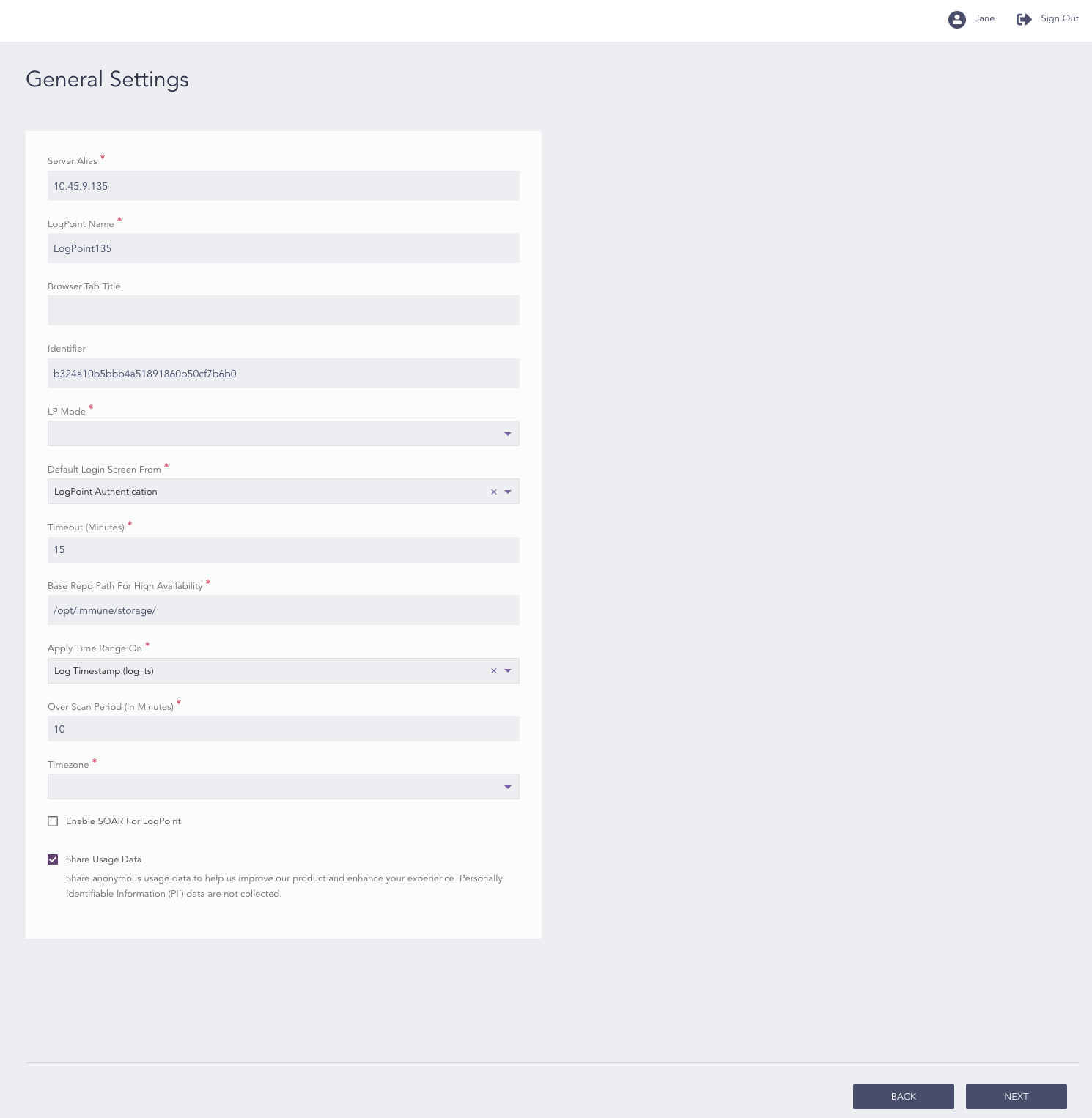
General Settings
Enter a Server Alias, a Logpoint Name, and a Browser Tab Title.
Select an LP Mode. You cannot select an LP Mode if one or more of the selected Logpoint instances are a Logpoint Collector.
If you select the Search Head mode, you can also access the logs of the connected Logpoint instances and their distributed Logpoint instances.
If you select the Distributed Logpoint mode, you can connect multiple Logpoint instances operating in different modes and store their logs. You can monitor, configure, and analyze the logs on the connected devices.
Select default authentication method from the Default Login Screen From drop-down.
Enter the Timeout (Minutes) period. You have to log in again if there is no activity for longer than the specified period.
Enter the Base Repo Path For High Availability. It is the base path for the repos from the remote machine. The default path for the base repo is /opt/immune/storage/.
Select either Collection Timestamp (col_ts) or Log Timestamp (log_ts) from the Apply Time Range On drop-down. The col_ts is the time when the log was collected in Logpoint, and the log_ts is the time when a device generated the log.
Enter the Over Scan Period (In Minutes). The overscan period is the extra period in which Logpoint searches for logs. It is useful for col_ts based searches.
Select the Timezone of the Logpoint instances.
Warning
If the timezones of Logpoint instances differ, log timestamps are also different despite the fact that the incoming logs were ingested at the same time. For that reason, we recommend applying the same timezone to all your Logpoint instances.
Select Enable SOAR for Logpoint. You can enable SOAR for Logpoint v7.0.0 and later. Go to Getting Started with SOAR for details.
Click Next.
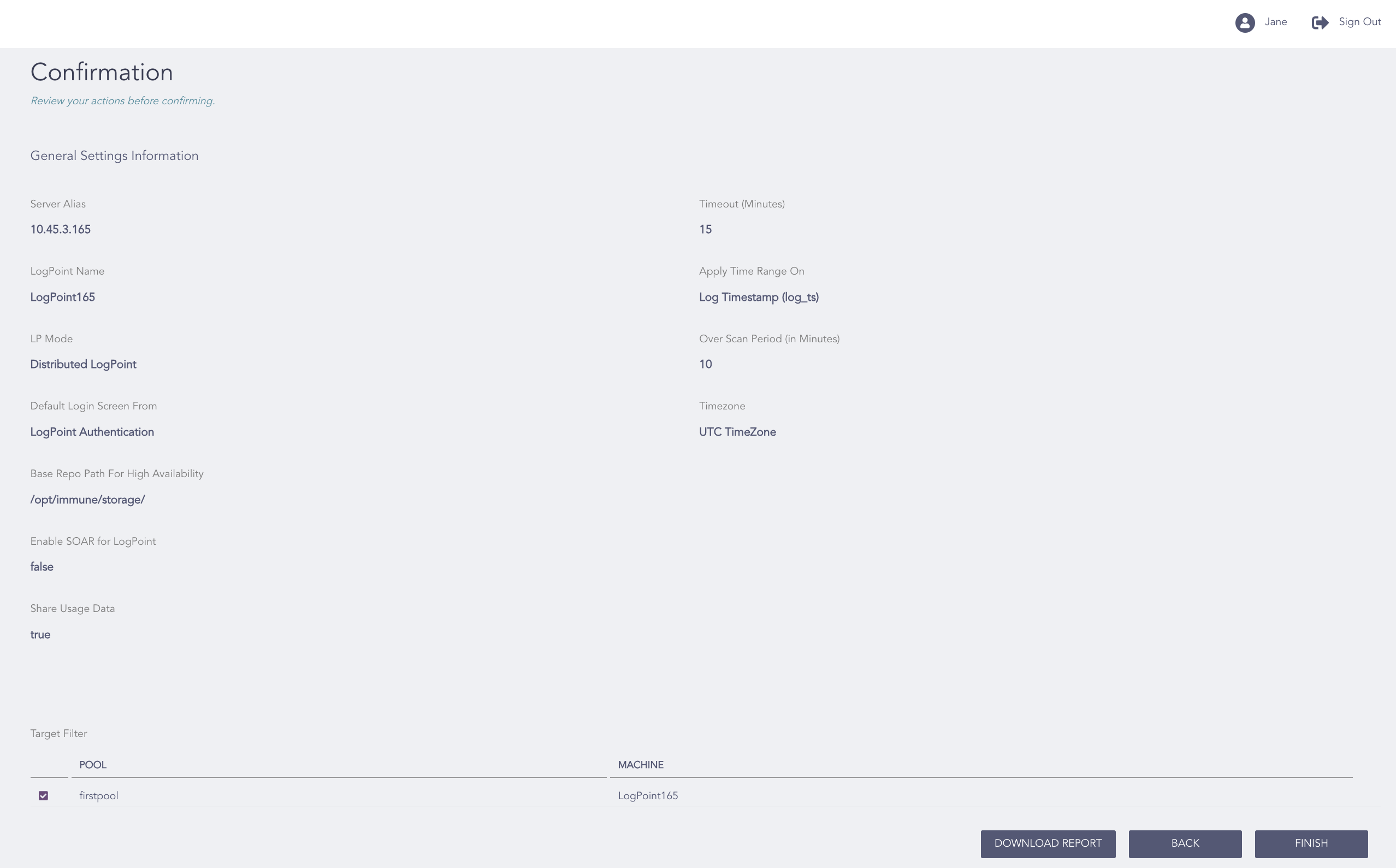
Confirming the Changes
Review your changes. You can go Back to make any changes if necessary. Click Download Report to save the summary of the task in PDF.
Click Finish.
Click OK.
Logpoint collects and analyzes anonymized usage data. Personally Identifiable Information (PII) data is not collected. You can select whether to share your Usage Data with us from Logpoint v7.3.0 and later. By default, Share Usage Data is selected. To deselect:
Go to Configure >> Settings >> System >> General Settings.
Deselect Share Usage Data.

Usage Data - System Settings
Click Save.